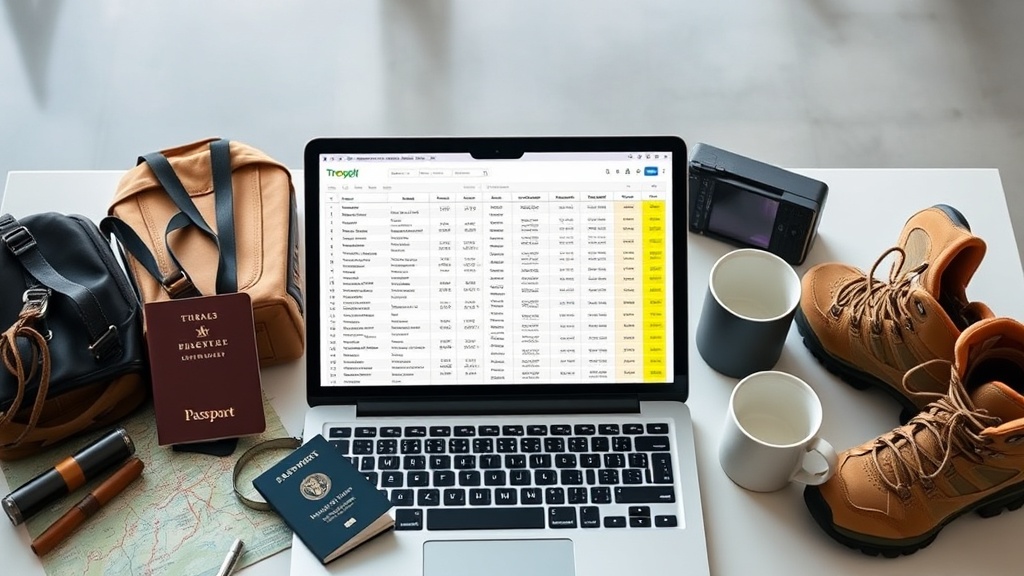
Master Itinerary Spreadsheet: A Step‑by‑Step Guide for Flawless Group Trips

Ever watched a group trip unravel because someone booked the wrong hotel or missed a payment deadline? I’ve been there, and the cure is a single, well‑crafted spreadsheet.
Context
Whether you’re rallying the crew for a March Madness road trip or a weekend bourbon trail, the logistics can feel like a construction project. A master itinerary spreadsheet turns chaos into a blueprint you can actually follow.
What You’ll Need
- Google Sheets (or Excel) – free and collaborative
- A shared folder on Google Drive or Dropbox for receipts, PDFs, and confirmations
- Basic budgeting numbers: total budget, per‑person contribution, and a buffer for unexpected fees
- Time zones, travel dates, and a list of must‑see stops
Step‑by‑Step Solution
- Set Up the Master Tab. Create a sheet called “Master Itinerary.” In column A, list every day of the trip (including travel days). In column B, note the date (auto‑fill using =DATE). This gives you a visual timeline at a glance.
- Build the Logistics Matrix. Add columns for Departure Time, Arrival Time, Transport Mode, Location, and Notes. Fill in flight numbers, drive times, or ferry schedules. I pull the data from Airport Delay Contingency Matrix 2026 to anticipate hiccups.
- Budget Tracker. In a separate tab, list every expense category (accommodation, fuel, meals, activities, gear rentals). Use the Group Trip Deposit Playbook as a template for contribution deadlines. Sum totals with =SUM and calculate per‑person shares.
- Payment Apps Showdown Integration. Add a column “Paid?” and link each line to the relevant transaction in the Payment Apps Showdown post. Color‑code: green for settled, orange for pending, red for overdue.
- Document Hub. Create a “Docs” tab with hyperlinks to PDFs: rental agreements, park permits, and insurance policies. Use Google Drive’s “shareable link” and paste it directly. This prevents the dreaded “I can’t find the reservation” scramble.
- Risk & Contingency. Add rows for “What‑If” scenarios (weather delay, vehicle breakdown). Assign owners and set trigger dates. The Spring Break Group Travel 2026 guide shows how I handle DST and REAL ID hiccups.
- Final Review & Distribution. Once the sheet is populated, use the “Share” button to give edit access to the core planners and view‑only to the rest of the crew. Send a summary email with a link and a short video walk‑through (optional).
Pro Tips
- Conditional Formatting. Highlight any cell where the budget exceeds the planned amount in red. It’s a visual red flag before the group notices.
- Version Control. Enable “Version History” in Google Sheets and label each major update (e.g., “Day‑2 Hotel Change”). You can revert if a mistake slips in.
- Automation. Use Google Apps Script to send automatic reminders two days before each payment deadline. I’ve shared a snippet in the Top 5 Travel Planning Apps post.
Common Mistakes & Fixes
- Over‑complicating the Sheet. If you have more than 12 columns, you’re probably tracking irrelevant data. Trim it down to the essentials.
- Missing Real‑Time Updates. Forgetting to sync changes after a last‑minute flight shift leads to confusion. Assign a “Live‑Update Lead” to watch flight trackers.
- Not Setting a Buffer. A 5‑10% contingency fund prevents the group from scrambling when an unexpected fee appears.
- Sharing Edit Access Too Widely. Everyone can edit, but that opens the door to accidental deletions. Use view‑only for most members.
- Ignoring Time Zones. When trips span multiple zones, normalize all times to the departure city’s zone and note local offsets in the “Notes” column.
Wrap‑Up
With a master itinerary spreadsheet, you get the same precision I use on construction sites—clear milestones, budget control, and a contingency plan baked in. Build yours before the next group adventure, and watch the logistics run like a well‑oiled machine.
Takeaway
Download the template below, plug in your dates, and share it with the crew. Your next trip will feel less like a scramble and more like a coordinated operation.
Steps
- 1
Set Up the Master Tab
Create a Master Itinerary sheet with dates and days to visualize the timeline.
- 2
Build the Logistics Matrix
Add columns for departure, arrival, transport mode, location, and notes; fill with schedule details.
- 3
Budget Tracker
List expense categories, calculate totals and per‑person shares using a dedicated tab.
- 4
Payment Apps Integration
Track payment status with color‑coded cells linked to the Payment Apps Showdown guide.
- 5
Document Hub
Store all receipts, permits, and policies in a Docs tab with shareable links.
- 6
Risk & Contingency
Add What‑If rows for weather, breakdowns, and assign owners.
- 7
Final Review & Distribution
Share edit access with core planners, view‑only with the crew, and send a summary email.